COB LED Display Calibration Troubleshooting: Full-Screen, Cabinet, and Network Faults
Calibration turns a screen from "watchable" into "polished." But the most common on-site problem isn't knowing how to calibrate — it's that calibration itself seems to break things. This guide walks LED display engineers through the three highest-frequency fault categories with ready-to-use troubleshooting flows.
Contents
A Field Story: After Calibration, the Screen Got Worse
A scene many engineers know all too well.
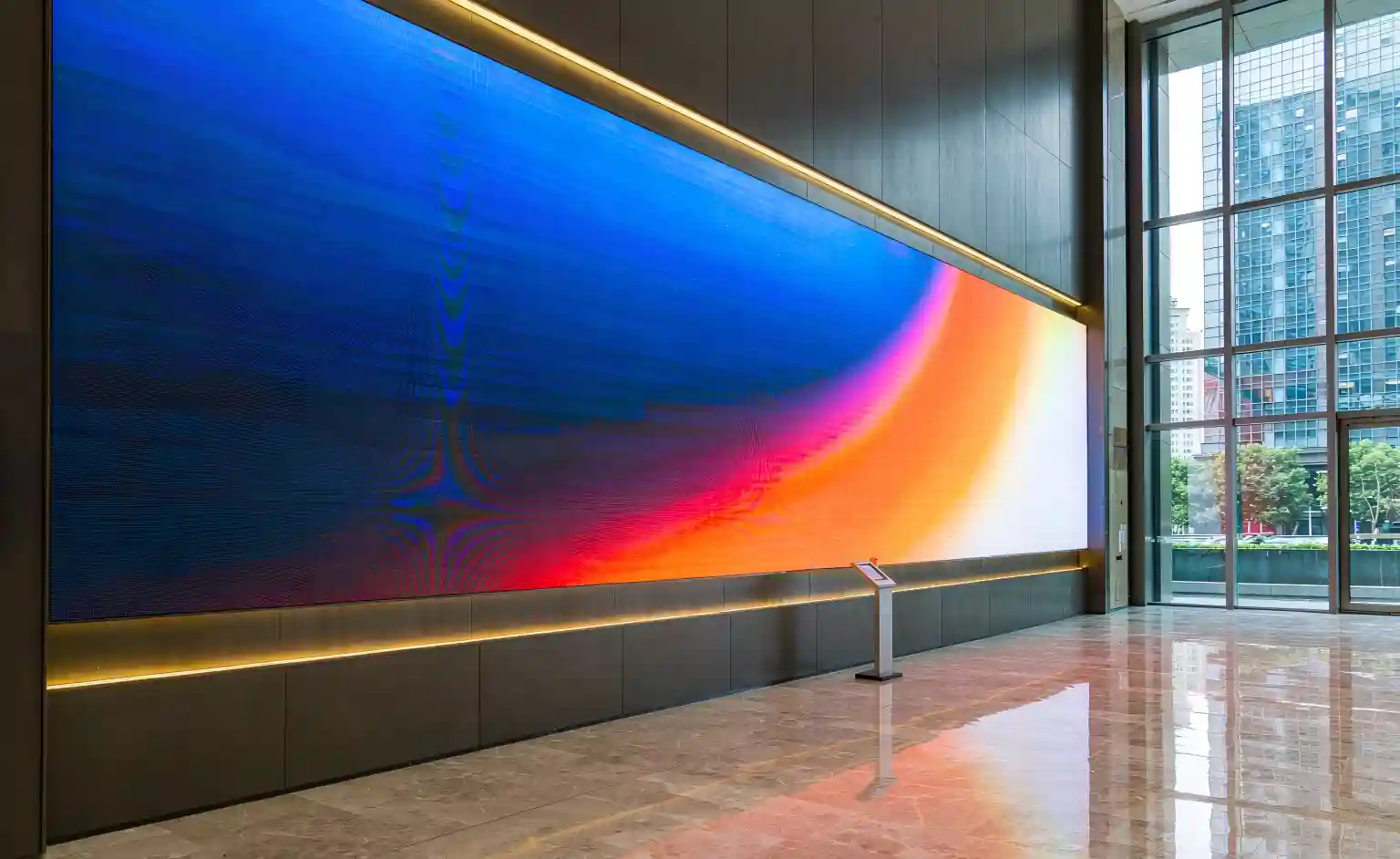
On a project handover, an engineer ran one final full-screen calibration: set up the camera, captured the data, and wrote the correction coefficients into the receiver cards, expecting a perfectly uniform gray. Instead, the screen lit up with a visible color patch in the middle and moiré fringes at the edges. The client asked bluntly: "Did you calibrate this wrong?"
The root cause turned out to be neither the algorithm nor the LEDs — the camera's auto white balance was never locked, so the reference color drifted the moment ambient light changed.
The takeaway: calibration troubleshooting is really about walking the chain — capture → compute → write → display → communicate — and isolating each link, not immediately blaming the hardware. Let's break it down across the three scenarios.
Full-Screen Calibration Troubleshooting
Also known as whole-screen or point-by-point calibration
Full-screen calibration uses a camera or colorimeter to photograph the entire display, captures the brightness and chromaticity of every LED, then computes a set of correction coefficients and writes them back to the receiver cards. It sets the upper limit of uniformity for the whole screen.
Full-screen faults cluster around the capture stage and the data stage, with three common symptoms:
1. Brightness/chromaticity is more uneven after calibration, with color patches
- Camera settings not locked: auto exposure, auto white balance, and auto focus were left on, so parameters drifted during capture.
- Ambient light interference: capture was done outside a dark room or without light shielding.
- Wrong distance or angle: too close/far causes under- or over-sampling; a tilted lens shifts corner color.
- Correction coefficients don't match the current screen configuration (pixel matrix or scan mode was changed).
2. Moiré, ripples, or stripes
- The camera's pixel frequency is too close to the LED matrix's spatial frequency, producing interference fringes.
- Fix: nudge the shooting distance so the camera pixel density and screen pitch sit in a safe range.
3. Coefficients won't write, or some regions stay uncorrected
- Sending card / receiver card firmware mismatch — incompatible protocol.
- Network communication dropped mid-write (see Section 4).
- The screen has dead, faulty, or heavily aged LEDs that a coefficient can no longer compensate.
Cabinet Calibration Troubleshooting
Fixing inter-cabinet mismatch and seams
Cabinet calibration addresses differences between cabinets: different LED batches, driver ICs, and aging levels create visible seams where one cabinet is brighter than its neighbor. Cabinet coefficients usually live on the receiver card (or a dedicated on-board memory chip).
1. Brightness mismatch between cabinets, obvious seams
- Coefficients lost or reset: the receiver card was flashed, replaced, or cleared by accident.
- Cabinets were swapped but not re-calibrated, so the new and old brightness baselines differ.
2. Cabinet calibration data fails to load
- Receiver card memory chip fault — data corrupted or unreadable.
- Calibration file version mismatch or corruption.
3. A single cabinet shows a color cast
- Large LED batch variation in that cabinet, beyond what base calibration can compensate.
- Coefficients were not written correctly to that cabinet's receiver card.
Network Communication Faults
The most "mysterious" — and most routine — failure class
An LED display's data travels from the sending card over gigabit Ethernet down to each receiver card. When this link breaks, you get slow loading at best and black screens, garbled images, or offline cabinets at worst.
1. Black screen, garbled image, flickering
- Poorly crimped RJ45 connectors, wrong wire order, or substandard cable.
- Sending card / receiver card firmware or protocol mismatch.
2. Some cabinets offline, or the image stutters
- Too many receiver cards cascaded — signal degrades stage by stage.
- Network cable exceeds distance limits (Cat5e/Cat6 generally ~100 m max).
- Faulty switch, port, or inline connector.
3. Intermittent communication, data load failures
- IP address conflicts or wrong network parameters.
- On-site electromagnetic interference (high-power equipment, VFDs) coupling into the cable.
Why COB LED Displays Demand Higher Calibration Precision
Chip-on-Board screens make every flaw more visible
COB LED displays (Chip on Board packaging) feature finer pitch, higher pixel density, and shorter viewing distances. The direct consequence: the same brightness or color deviation is far easier to notice on a COB screen than on a conventional SMD screen.
Three factors make COB calibration more demanding:
- Fine pitch amplifies variation: the smaller the pitch, the more visible the difference between adjacent LEDs — requiring higher point-by-point calibration precision.
- Close viewing exposes flaws: COB screens are used in boardrooms, studios, and control rooms, where color patches, seams, and moiré are impossible to hide.
- Whole-screen consistency defines the look: COB's value is "one seamless surface with no grain" — any cabinet-to-cabinet color shift breaks that illusion.
For companies exporting COB LED displays, getting calibration right — and fixing calibration faults fast — is a genuine competitive edge. It cuts on-site rework, shortens delivery, and reduces after-sales complaints.
Key Takeaways & FAQ
Quick-reference table and common questions
Here's the core troubleshooting logic condensed into a table for on-site use:
| Fault Scenario | Typical Symptom | Most Likely Cause | First Action |
|---|---|---|---|
| Full-screen calibration | Color patches / moiré / no effect | Camera drift, ambient light, firmware mismatch | Lock camera settings, re-capture in dark room |
| Cabinet calibration | Seam color shift / data load failure | Lost coefficients, uncalibrated swap, memory fault | Check for lost coefficients, restore backup |
| Network communication | Black screen / garbled / offline cabinets | Cable quality, too many cascades, IP conflict, EMI | Swap in a factory cable, isolate stage by stage |
Frequently Asked Questions
Need COB LED Display Calibration & Pre-Sales Support?
We provide complete COB LED display solutions with factory calibration and on-site troubleshooting support. Get in touch for a quote.
Get a Quote & Technical Docs